The WordPress Block Editor, commonly known as Gutenberg, has transformed the way websites are built and managed. Instead of relying on shortcodes or page builders for every customization, developers can now create reusable, interactive, and highly customizable content blocks tailored to specific business requirements.
While WordPress provides many built-in blocks, there are situations where standard blocks simply aren't enough. Businesses may need custom call-to-action sections, pricing tables, testimonials, FAQs, team members, or dynamic content that matches their branding and workflow. This is where custom Gutenberg blocks become invaluable.
In this guide, you'll learn what custom Gutenberg blocks are, why they're useful, how they work, and the steps involved in creating your own blocks for modern WordPress websites.
What Are Gutenberg Blocks?
Gutenberg blocks are the building blocks of the WordPress editor.
Every piece of content you add—such as a heading, paragraph, image, gallery, button, video, or quote—is treated as an individual block. Unlike the Classic Editor, where content was managed inside one large text editor, Gutenberg allows every element to have its own settings, styles, and functionality.
This modular approach makes content creation more flexible and gives developers the ability to build reusable components that editors can use without writing code.
For developers, Gutenberg blocks are more than visual elements—they are React-based components that can be customized to meet almost any business requirement.
Why Build Custom Gutenberg Blocks?
Although WordPress includes dozens of built-in blocks, real-world projects often require functionality that isn't available by default.
For example, many business websites repeatedly use sections such as:
Team Members
Testimonials
Pricing Tables
Service Cards
Hero Sections
FAQs
Statistics
Call-to-Action Sections
Instead of recreating these layouts on every page, developers can build reusable custom blocks that content editors simply insert and update.
Some of the key benefits include:
Faster content creation
Consistent branding
Better editing experience
Reduced reliance on page builders
Easier long-term maintenance
Cleaner and more structured content
Custom Gutenberg blocks also help prevent accidental design changes because editors only modify the fields you've provided.
When Should You Create a Custom Block?
Creating a custom Gutenberg block makes sense when content follows a consistent structure.
For example:
Every testimonial has a quote, author, and designation.
Every team member has a photo, name, role, and social links.
Every pricing plan contains similar information.
Every service section follows the same design.
Rather than asking editors to recreate these layouts manually, a custom block provides a structured interface where only the necessary information can be edited.
If a layout appears repeatedly throughout a project, it's usually a strong candidate for a custom Gutenberg block.
Prerequisites
Before building your first Gutenberg block, you should have:
A local WordPress development environment
Basic PHP knowledge
Familiarity with JavaScript (ES6+)
A basic understanding of React
A code editor such as Visual Studio Code
Modern AI-powered development tools like Claude Code, Cursor, or GitHub Copilot can help generate boilerplate code, but understanding how Gutenberg blocks are structured is still essential for building maintainable and scalable solutions.
Creating a Block Plugin
The recommended approach is to build custom Gutenberg blocks inside a plugin rather than placing them directly in a theme. This keeps your blocks portable across theme changes, easier to maintain, and independent of any single design.
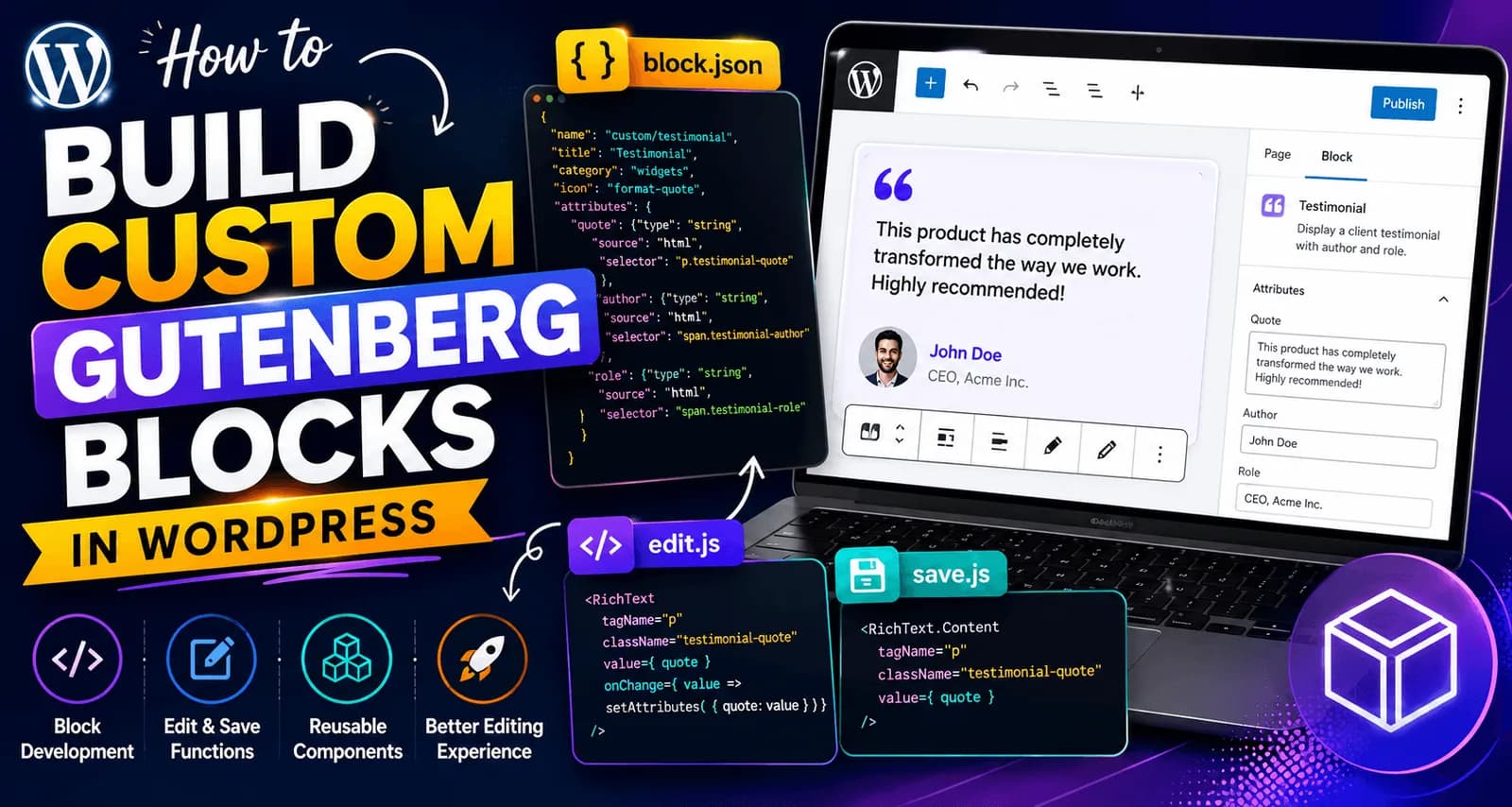
For this guide, we'll build a simple Testimonial Block that displays a quote, author name, and role.
A typical project structure looks like this:
testimonial-block/
│
├── block.json
├── src/
│   ├── index.js
│   ├── edit.js
│   ├── save.js
│   ├── editor.scss
│   └── style.scss
└── testimonial-block.php
The most important files you'll work with are:
block.json – Defines the block's metadata and configuration.
index.js – Registers the block with the Block Editor.
edit.js – Controls the editing experience inside Gutenberg.
save.js – Generates the HTML saved into the post content.
testimonial-block.php – Registers the block with WordPress.
Modern development tools can generate the initial project structure automatically. Rather than focusing on boilerplate setup, it's more valuable to understand what each file does and how they work together to create a fully functional block.
Registering a Custom Block
Every Gutenberg block must be registered before WordPress can recognize and display it inside the Block Editor.
Modern block development separates this process into two parts:
block.json – Defines the block's metadata and configuration.
The plugin's main PHP file – Registers the compiled block with WordPress.
block.json
The block.json file acts as the blueprint for your custom block.
It contains information such as:
Block name
Title
Category
Icon
Description
Attributes
Editor scripts
Frontend styles
Editor styles
Below is a simplified example for our Testimonial Block:
{
  "$schema": "https://schemas.wp.org/trunk/block.json",
  "apiVersion": 3,
  "name": "custom/testimonial",
  "title": "Testimonial",
  "category": "widgets",
  "icon": "format-quote",
  "description": "Display a client testimonial with author and role.",
  "attributes": {
    "quote": {
      "type": "string",
      "source": "html",
      "selector": "p.testimonial-quote"
    },
    "author": {
      "type": "string",
      "source": "html",
      "selector": "span.testimonial-author"
    },
    "role": {
      "type": "string",
      "source": "html",
      "selector": "span.testimonial-role"
    }
  },
  "supports": {
    "html": false
  },
  "textdomain": "testimonial-block",
  "editorScript": "file:./index.js",
  "editorStyle": "file:./index.css",
  "style": "file:./style-index.css"
}
Using block.json centralizes your block configuration into a single file, making projects easier to maintain while following WordPress development standards.
Registering the Block in PHP
Once your block has been defined, WordPress needs to know that it exists.
The plugin's main PHP file handles this registration.
<?php
/**
 * Plugin Name: Testimonial Block
 * Description: A custom Gutenberg block for client testimonials.
 * Version: 1.0.0
 */

if ( ! defined( 'ABSPATH' ) ) {
    exit;
}

function testimonial_block_init() {
    register_block_type( __DIR__ . '/build' );
}

add_action( 'init', 'testimonial_block_init' );
The register_block_type() function reads the configuration directly from the compiled block.json file located inside the build directory.
One of the biggest advantages of this approach is that WordPress automatically loads the required JavaScript and CSS files defined in block.json. You don't need to manually enqueue scripts or styles for a standard static block, resulting in cleaner and more maintainable code.
Understanding Block Attributes
Attributes are how Gutenberg remembers the information entered by the content editor.
Whenever a user updates a field inside the editor, the values are stored as block attributes and later used to generate the final HTML.
For our Testimonial Block, we've defined three attributes:
Each attribute contains three important properties:
type – Defines the data type.
source – Specifies where WordPress retrieves the value.
selector – Identifies the HTML element containing the value.
For example:
"quote": {
  "type": "string",
  "source": "html",
  "selector": "p.testimonial-quote"
}
This tells WordPress to read the quote from the <p> element with the class testimonial-quote.
When someone edits the block, edit.js updates these values using setAttributes().
When the page is displayed, save.js reads the same attributes and generates the final HTML.
This relationship between block.json, edit.js, and save.js is what allows Gutenberg to restore editable content every time the block is opened.
One important detail is that the selector defined in block.json must exactly match the HTML generated by save.js. If they don't match, WordPress won't be able to restore the saved content correctly.
Edit vs Save Functions
One of the most common areas of confusion for new Gutenberg developers is understanding the difference between the Edit function and the Save function.
Although they work together, they have completely different responsibilities.
The Edit Function
The edit.js file controls what users see and interact with inside the Block Editor.
This is where you build the editing interface using components such as:
Rich text fields
Image selectors
Toolbar controls
Inspector settings
Custom UI controls
For our Testimonial Block, we'll use the RichText component to allow editors to enter the testimonial, author name, and role.
import { useBlockProps, RichText } from '@wordpress/block-editor';

export default function Edit( { attributes, setAttributes } ) {

    const { quote, author, role } = attributes;

    const blockProps = useBlockProps({
        className: 'testimonial-block'
    });

    return (
        <div { ...blockProps }>

            <RichText
                tagName="p"
                className="testimonial-quote"
                placeholder="Enter testimonial quote..."
                value={ quote }
                onChange={ ( value ) => setAttributes({ quote: value }) }
            />

            <RichText
                tagName="span"
                className="testimonial-author"
                placeholder="Author name"
                value={ author }
                onChange={ ( value ) => setAttributes({ author: value }) }
            />

            <RichText
                tagName="span"
                className="testimonial-role"
                placeholder="Author role"
                value={ role }
                onChange={ ( value ) => setAttributes({ role: value }) }
            />

        </div>
    );
}
Every time the editor changes a value, setAttributes() updates the corresponding block attribute.
You'll also notice the use of useBlockProps(). This helper automatically adds the wrapper attributes required by Gutenberg, including classes, alignment support, and block-specific properties. Every custom block should use it for the root element.
The Save Function
Unlike edit.js, the save.js file doesn't display interactive controls.
Its only responsibility is to generate the static HTML that will be stored inside the post content.
import { useBlockProps, RichText } from '@wordpress/block-editor';

export default function save( { attributes } ) {

    const { quote, author, role } = attributes;

    const blockProps = useBlockProps.save({
        className: 'testimonial-block'
    });

    return (
        <div { ...blockProps }>

            <RichText.Content
                tagName="p"
                className="testimonial-quote"
                value={ quote }
            />

            <RichText.Content
                tagName="span"
                className="testimonial-author"
                value={ author }
            />

            <RichText.Content
                tagName="span"
                className="testimonial-role"
                value={ role }
            />

        </div>
    );
}
Notice how the selectors used here:
p.testimonial-quote
span.testimonial-author
span.testimonial-role
match the selectors defined earlier inside block.json.
This consistency allows WordPress to parse the saved HTML and restore the values into the editor the next time someone edits the page.
The key distinction is simple:
One common mistake developers encounter is modifying the HTML structure inside save.js after content has already been published. If the generated markup changes, WordPress may mark existing blocks as invalid because the saved HTML no longer matches the updated save() function.
Understanding the relationship between Attributes, Edit, and Save is one of the most important steps toward building reliable and maintainable custom Gutenberg blocks.
Testing Your Block
Once you've completed the block implementation, the next step is to verify that everything works as expected.
Activate your plugin from the WordPress Plugins page and open the Block Editor.
Search for Testimonial and insert the block into a page.
Add the following information:
Testimonial quote
Author name
Author role
Save or publish the page and verify that:
The editor displays the block correctly.
The frontend matches the editor.
Reopening the page preserves all entered values.
The block remains editable without errors.
If WordPress reports that the block is invalid, it's usually because the HTML generated by save.js no longer matches the attributes defined in block.json.
This is one of the most common issues developers encounter when building static Gutenberg blocks.
Testing your block after each significant change makes debugging much easier and helps ensure the editor and frontend remain synchronized.
Static vs Dynamic Blocks
Not every Gutenberg block behaves the same way.
Depending on how your content is generated, you'll typically build either a static block or a dynamic block.
Understanding the difference will help you decide which approach is best for your project.
Static Blocks
Static blocks save their HTML directly into the post content.
When an editor publishes a page, the generated HTML is stored inside the database exactly as it appears.
Examples include:
Buttons
Headings
Images
Testimonials
Pricing Tables
Call-to-Action Sections
Because the HTML is already stored, WordPress simply outputs it when the page loads.
Static blocks are generally easier to build and are ideal for content that rarely changes.
Dynamic Blocks
Dynamic blocks generate their output every time the page is rendered.
Instead of storing HTML inside the post, WordPress calls a PHP rendering function that produces fresh content.
This approach is commonly used when displaying:
Latest Posts
Recent Products
WooCommerce Data
User Information
Event Listings
Custom Database Queries
Dynamic blocks ensure visitors always see the most up-to-date information.
Rather than relying on a save.js function to generate HTML, WordPress uses PHP to render the block during page generation.
A simplified registration example looks like this:
register_block_type(
    __DIR__ . '/build',
    array(
        'render_callback' => 'render_testimonial_block',
    )
);

function render_testimonial_block( $attributes ) {

    ob_start();

    ?>
    <div class="testimonial-block">
        <p><?php echo esc_html( $attributes['quote'] ); ?></p>
    </div>
    <?php

    return ob_get_clean();
}
Dynamic rendering is particularly useful whenever your content depends on external APIs, database queries, WooCommerce products, or frequently changing information.
Styling Custom Blocks
A good Gutenberg block should provide a consistent experience inside both the editor and the frontend.
Although the editor is powered by React, users expect what they see while editing to closely match what visitors see on the published website.
Most custom blocks include two stylesheet files:
This separation allows you to optimize the editing experience without affecting the live website.
When styling your blocks, consider:
The closer your editor styling matches the frontend, the easier content editing becomes for non-technical users.
Best Practices
Building a working block is only the first step.
Building a block that's easy to maintain is equally important.
Here are several best practices every WordPress developer should follow.
Keep Blocks Focused
Each block should solve one specific problem.
Avoid creating large blocks that try to handle multiple unrelated layouts.
Smaller, reusable blocks are easier to maintain and provide editors with greater flexibility.
Build Reusable Components
Whenever possible, design blocks that can be reused throughout the website.
Instead of creating separate Hero blocks for different pages, create one flexible Hero block with configurable options.
Reusable blocks reduce duplicate code and improve consistency.
Follow WordPress Coding Standards
Consistent naming conventions, proper indentation, and organized project structures make collaboration easier and simplify future maintenance.
Following WordPress standards also makes your plugins feel more familiar to other developers.
Prioritize Accessibility
Accessibility should never be treated as an afterthought.
Your custom blocks should support:
Accessible websites create a better experience for all users.
Escape and Sanitize Data
Always validate, sanitize, and escape user input before displaying it.
WordPress provides numerous helper functions such as:
sanitize_text_field()
esc_html()
esc_attr()
wp_kses_post()
Following these practices helps protect your website from common security vulnerabilities.
Load Assets Only When Needed
Avoid loading JavaScript and CSS globally if only one custom block requires them.
Keeping assets lightweight improves website performance and reduces unnecessary network requests.
Common Mistakes
Developers building Gutenberg blocks for the first time often encounter similar challenges.
Being aware of these mistakes can save hours of debugging.
Editing Generated Files
Never modify files inside the compiled build directory.
These files are generated automatically and will be overwritten during future builds.
Always make changes inside the src directory.
Forgetting Block Attributes
If an attribute isn't properly defined inside block.json, Gutenberg won't know how to save or restore its value.
Always ensure your attributes match the HTML generated by save.js.
Ignoring Accessibility
A visually appealing block isn't enough.
Ensure users can navigate and interact with your block using only a keyboard or assistive technologies.
Mixing Multiple Responsibilities
A single block shouldn't attempt to manage every possible layout.
Creating smaller, specialized blocks leads to cleaner code and a better editing experience.
Breaking Existing Blocks
Changing the HTML structure inside save.js after content has already been published can cause WordPress to mark blocks as invalid.
If structural changes are necessary, consider block deprecations or dynamic rendering strategies to maintain compatibility.
Real-World Use Cases
Custom Gutenberg blocks are widely used across modern WordPress projects.
Some common examples include:
Because these blocks are reusable, editors can build complex page layouts without relying on third-party page builders or custom HTML.
Final Thoughts
Custom Gutenberg blocks have become one of the most valuable tools in modern WordPress development. They provide developers with complete control over the editing experience while giving content editors a simple and intuitive interface for managing website content.
Although building custom blocks requires learning concepts such as React, block attributes, and the WordPress Block Editor architecture, the long-term benefits far outweigh the initial learning curve. Well-designed blocks improve consistency, reduce maintenance, enhance performance, and make websites easier to manage as they grow.
Whether you're creating a simple testimonial block or building dynamic integrations with external data sources, understanding how Gutenberg blocks work is an investment that will improve every future WordPress project you build.
As the Block Editor continues to evolve, custom Gutenberg blocks will remain a fundamental part of professional WordPress development. Learning them today prepares you to build faster, cleaner, and more scalable websites tomorrow.