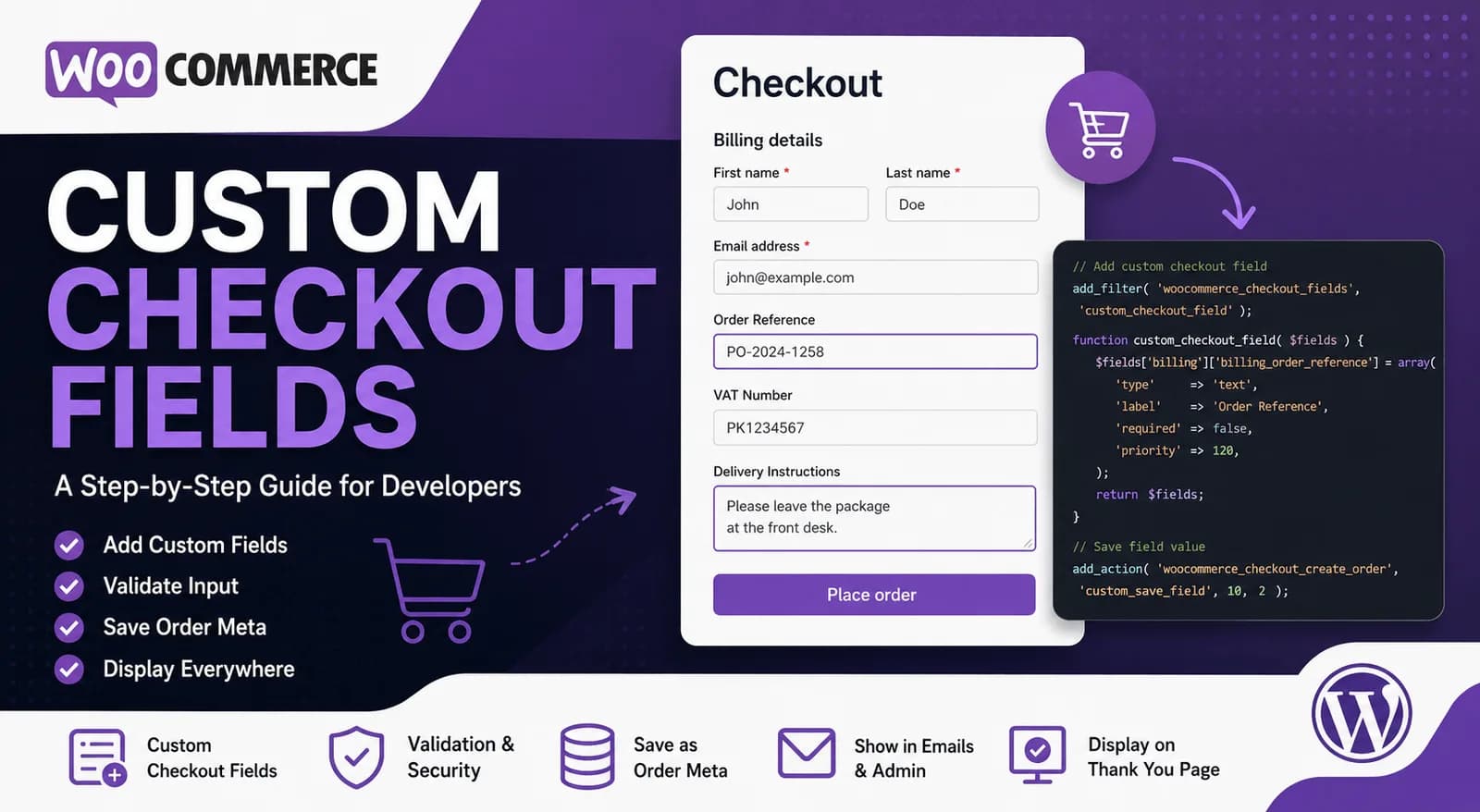
Every WooCommerce store is different. While the default checkout fields work well for most online stores, many businesses need to collect additional information from customers before an order is placed.
For example, a B2B store may need a purchase order number, a printing company may ask for artwork instructions, a food delivery service might require delivery notes, and an event organizer could collect attendee information during checkout.
Fortunately, WooCommerce is designed to be highly customizable. Instead of modifying core files, developers can extend the checkout experience using WooCommerce's built-in hooks and filters.
In this guide, you'll learn how to create custom WooCommerce checkout fields, validate user input, save the data securely, and prepare it for use throughout the order lifecycle.
What Are WooCommerce Checkout Fields?
WooCommerce includes several checkout fields by default to collect customer information required for processing orders.
These fields are grouped into three main sections:
Billing Information
Shipping Information
Order Notes
Examples include:
First Name
Last Name
Company
Email Address
Phone Number
Country
Address
City
Postal Code
Order Notes
Although these cover most use cases, businesses often need additional fields tailored to their workflow.
That's where custom checkout fields become useful.
Why Add Custom Checkout Fields?
Adding custom checkout fields allows businesses to collect information specific to their products, services, or internal processes.
Some common examples include:
Rather than contacting customers after an order has been placed, this information can be collected during checkout, creating a smoother experience for both customers and administrators.
Understanding the WooCommerce Checkout Flow
Before writing any code, it's helpful to understand how WooCommerce processes a checkout request.
A simplified workflow looks like this:
Customer
    ↓
Checkout Form
    ↓
Validation
    ↓
Order Creation
    ↓
Order Meta Saved
    ↓
Emails Generated
    ↓
Order Displayed in Admin
Every step of this process provides hooks that developers can use to customize the checkout experience.
Understanding where each hook runs makes it much easier to decide where your custom functionality belongs.
Understanding WooCommerce Hooks
WooCommerce relies heavily on WordPress hooks, making it easy to customize almost every part of the checkout process.
You'll primarily work with two types of hooks:
Filters
Filters modify existing data before WooCommerce displays or processes it.
For example:
Add checkout fields
Remove checkout fields
Change labels
Modify placeholders
Actions
Actions execute custom code at specific points during checkout.
For example:
Knowing whether you need an Action or a Filter is one of the most important concepts in WooCommerce customization.
Adding Your First Custom Checkout Field
WooCommerce provides the woocommerce_checkout_fields filter, allowing developers to modify the default checkout fields before they are rendered.
This is the recommended way to add new fields without modifying WooCommerce core files.
Let's create a simple Order Reference field.
add_filter(
    'woocommerce_checkout_fields',
    'ag_add_order_reference_field'
);

function ag_add_order_reference_field( $fields ) {

    $fields['billing']['billing_order_reference'] = array(
        'type'        => 'text',
        'label'       => 'Order Reference',
        'placeholder' => 'Enter your reference number',
        'required'    => false,
        'class'       => array( 'form-row-wide' ),
        'priority'    => 120,
    );

    return $fields;

}
Once this code is added to your custom plugin or child theme, WooCommerce automatically displays the new field within the Billing section during checkout.
Understanding the Field Properties
Each property controls a different aspect of the checkout field.
type
Determines which type of input WooCommerce should display.
Examples include:
text
textarea
email
number
password
checkbox
select
Choosing the appropriate field type improves both usability and validation.
label
The visible title shown above the field.
'label' => 'Order Reference'
Keep labels short and descriptive so customers immediately understand what information is expected.
placeholder
Displays helper text inside the input before the customer enters any information.
'placeholder' => 'Enter your reference number'
Placeholders improve usability by providing examples without cluttering the interface.
required
Controls whether customers must complete the field before placing an order.
'required' => false
Setting this to true makes the field mandatory.
class
Controls the layout of the field.
'class' => array( 'form-row-wide' )
WooCommerce provides several predefined layout classes such as:
form-row-first
form-row-last
form-row-wide
These make it easy to position fields without writing custom CSS.
priority
Determines the order in which fields appear.
'priority' => 120
Fields with lower priority values appear earlier during checkout.
This makes it easy to insert custom fields exactly where you want them.
Validating Custom Checkout Fields
Adding a field is only part of the process.
If a field contains important business information, you'll usually want to validate it before WooCommerce creates the order.
WooCommerce provides the woocommerce_checkout_process action for this purpose.
This action runs after the customer submits the checkout form but before the order is created.
add_action(
    'woocommerce_checkout_process',
    'ag_validate_order_reference'
);

function ag_validate_order_reference() {

    if ( empty( $_POST['billing_order_reference'] ) ) {

        wc_add_notice(
            __( 'Please enter your Order Reference.', 'your-text-domain' ),
            'error'
        );

    }

}
If validation fails, WooCommerce displays the error message and prevents the order from being submitted until the issue is resolved.
Why Use woocommerce_checkout_process?
This hook is specifically designed for validating checkout data.
Rather than writing custom JavaScript or manually checking values after an order has been created, WooCommerce performs validation before continuing the checkout process.
This ensures that invalid or incomplete data never reaches your orders.
Understanding wc_add_notice()
The wc_add_notice() function displays messages to customers during checkout.
For validation errors, use:
wc_add_notice(
    'Your error message.',
    'error'
);
WooCommerce also supports:
Using WooCommerce's built-in notification system ensures your messages match the active theme and provide a consistent user experience.
Saving the Custom Checkout Field
Once the checkout has passed validation, the next step is storing the information with the order.
WooCommerce provides the woocommerce_checkout_create_order action, which runs immediately before the order is saved to the database.
This is the recommended place to save custom checkout data.
add_action(
    'woocommerce_checkout_create_order',
    'ag_save_order_reference',
    10,
    2
);

function ag_save_order_reference( $order, $data ) {

    if ( ! empty( $_POST['billing_order_reference'] ) ) {

        $order->update_meta_data(
            '_billing_order_reference',
            sanitize_text_field(
                $_POST['billing_order_reference']
            )
        );

    }

}
Here we're using update_meta_data() to save the value as custom order metadata.
Notice that the value is passed through sanitize_text_field() before being stored.
This is an important security practice because it removes unwanted characters and helps protect your application from malicious input.
By the end of this step, your custom checkout field is fully integrated into the checkout process—it appears in the form, validates user input, and securely saves the data with the order.
In the next part of this guide, we'll display the custom field in the WooCommerce admin panel, include it in order emails, show it on the Thank You page, and cover best practices, common mistakes, and real-world implementation tips.
Displaying the Custom Field in the WooCommerce Admin
Saving the custom checkout field is only part of the customization process. Store administrators also need to view this information when managing customer orders.
WooCommerce provides the woocommerce_admin_order_data_after_billing_address action, which allows developers to display custom order metadata directly on the order details page.
add_action(
    'woocommerce_admin_order_data_after_billing_address',
    'ag_display_order_reference_admin'
);

function ag_display_order_reference_admin( $order ) {

    $order_reference = $order->get_meta( '_billing_order_reference' );

    if ( ! empty( $order_reference ) ) {

        echo '<p><strong>Order Reference:</strong> '
            . esc_html( $order_reference ) .
        '</p>';

    }

}
Using the get_meta() method is the recommended way to retrieve custom order metadata. Notice that the value is escaped using esc_html() before being displayed. This prevents unwanted HTML from being rendered inside the admin dashboard.
Displaying custom checkout information within the order screen allows store managers to access important customer data without opening additional systems or searching through emails.
Adding the Custom Field to WooCommerce Emails
Many businesses require custom checkout information to appear in order confirmation emails.
For example:
Purchase Order Number
Delivery Instructions
VAT Number
Customer Reference
Event Information
WooCommerce provides the woocommerce_email_order_meta_fields filter for adding custom order metadata to transactional emails.
add_filter(
    'woocommerce_email_order_meta_fields',
    'ag_add_order_reference_to_emails',
    10,
    3
);

function ag_add_order_reference_to_emails(
    $fields,
    $sent_to_admin,
    $order
) {

    $fields['order_reference'] = array(
        'label' => 'Order Reference',
        'value' => $order->get_meta(
            '_billing_order_reference'
        ),
    );

    return $fields;

}
This filter automatically includes the custom field in customer and administrator order emails without modifying WooCommerce email templates.
Using hooks instead of overriding templates also makes future WooCommerce updates much easier to manage.
Displaying the Field on the Thank You Page
Sometimes customers should see the information they submitted immediately after placing an order.
WooCommerce provides the woocommerce_thankyou action for customizing the Thank You page.
add_action(
    'woocommerce_thankyou',
    'ag_display_order_reference_thankyou'
);

function ag_display_order_reference_thankyou(
    $order_id
) {

    $order = wc_get_order( $order_id );

    if ( ! $order ) {
        return;
    }

    $reference = $order->get_meta(
        '_billing_order_reference'
    );

    if ( ! empty( $reference ) ) {

        echo '<p><strong>Your Order Reference:</strong> '
            . esc_html( $reference ) .
        '</p>';

    }

}
This small enhancement reassures customers that the information they submitted has been successfully received.
It's particularly useful when collecting business-specific information such as purchase order numbers or project references.
Choosing the Right Hook
WooCommerce provides different hooks throughout the checkout lifecycle, and each one serves a specific purpose. Understanding when these hooks run makes it much easier to customize the checkout process without writing unnecessary code.
woocommerce_checkout_fields
This filter runs before the checkout form is displayed. Use it whenever you need to add, remove, or modify billing, shipping, or additional checkout fields.
woocommerce_checkout_process
This action runs after the customer submits the checkout form but before WooCommerce creates the order. It's the ideal place to validate custom checkout fields and display error messages if required information is missing or invalid.
woocommerce_checkout_create_order
Once validation has passed, this action is triggered while WooCommerce is creating the order. Use it to save your custom checkout field values as order metadata.
woocommerce_admin_order_data_after_billing_address
This action runs on the WooCommerce order details page in the WordPress admin dashboard. It's commonly used to display custom checkout information for store administrators.
woocommerce_email_order_meta_fields
This filter allows you to include custom order metadata in WooCommerce emails sent to customers and administrators. It's useful for displaying information such as Purchase Order Numbers, Order References, or Delivery Instructions.
woocommerce_thankyou
This action runs after an order has been successfully placed and the customer is redirected to the Thank You page. It's a good place to display additional order information or confirmation messages.
Each of these hooks plays a role at a different stage of the checkout process. Rather than trying to handle everything in a single function, placing your code in the appropriate hook keeps your implementation organized, easier to maintain, and aligned with WooCommerce development best practices.
Best Practices
Building custom checkout fields is relatively simple, but following best practices ensures your code remains secure, maintainable, and compatible with future WooCommerce updates.
Use a Custom Plugin
Whenever possible, place checkout customizations inside a custom plugin instead of editing your theme's functions.php file.
Keeping functionality separate from presentation makes future maintenance significantly easier.
Prefix Your Functions
Avoid generic function names.
Instead of:
save_order_reference()
Use something more unique:
ag_save_order_reference()
Function prefixes help prevent conflicts with themes and third-party plugins.
Sanitize User Input
Never trust user input.
Always sanitize data before saving it.
Examples include:
Sanitizing input protects your application from invalid or malicious data.
Escape Output
Whenever displaying information, escape it appropriately.
Common functions include:
esc_html()
esc_attr()
esc_url()
This helps prevent cross-site scripting (XSS) vulnerabilities.
Keep Checkout Simple
Adding too many checkout fields can negatively affect conversions.
Only collect information that's genuinely required for processing the order.
A shorter checkout generally leads to a better user experience.
Common Mistakes
Developers new to WooCommerce customization often encounter similar issues.
Being aware of these mistakes can save considerable debugging time.
Editing WooCommerce Core Files
Never modify WooCommerce core files.
Future updates will overwrite your changes.
Always use hooks and filters.
Skipping Validation
Adding a required field without validating it may result in incomplete or invalid orders.
Always validate important customer information before order creation.
Forgetting to Sanitize Data
Never save raw $_POST values directly into the database.
Always sanitize data before storing it.
Using the Wrong Hook
WooCommerce provides different hooks for different stages of checkout.
Choosing the wrong hook often results in fields not appearing, data not saving, or information displaying in the wrong place.
Understanding the checkout lifecycle helps avoid these issues.
Ignoring User Experience
Collecting unnecessary information increases checkout friction.
Ask only for information that provides real business value.
Real-World Use Cases
Custom checkout fields are used in a wide range of WooCommerce projects.
Some common examples include:
B2B Stores
Wholesale Websites
Food Delivery
Delivery Instructions
Gate Code
Preferred Delivery Time
Event Registration
Attendee Name
Dietary Requirements
Ticket Preferences
Printing Companies
Artwork Instructions
Project Reference
Required Delivery Date
These examples demonstrate how flexible WooCommerce checkout customization can be when implemented correctly.
Final Thoughts
Custom WooCommerce checkout fields are one of the most common requirements in real-world eCommerce projects. Whether you're collecting purchase order numbers, delivery instructions, or business-specific information, WooCommerce provides a robust set of hooks that make customization straightforward without modifying core files.
The key to building reliable checkout customizations isn't just writing code—it's understanding the checkout lifecycle. By knowing when to add fields, validate user input, save order metadata, and display that information throughout the customer journey, you can build solutions that remain secure, maintainable, and compatible with future WooCommerce updates.
As your WooCommerce projects grow, these same principles can be applied to more advanced customizations, making checkout experiences that better serve both customers and businesses.