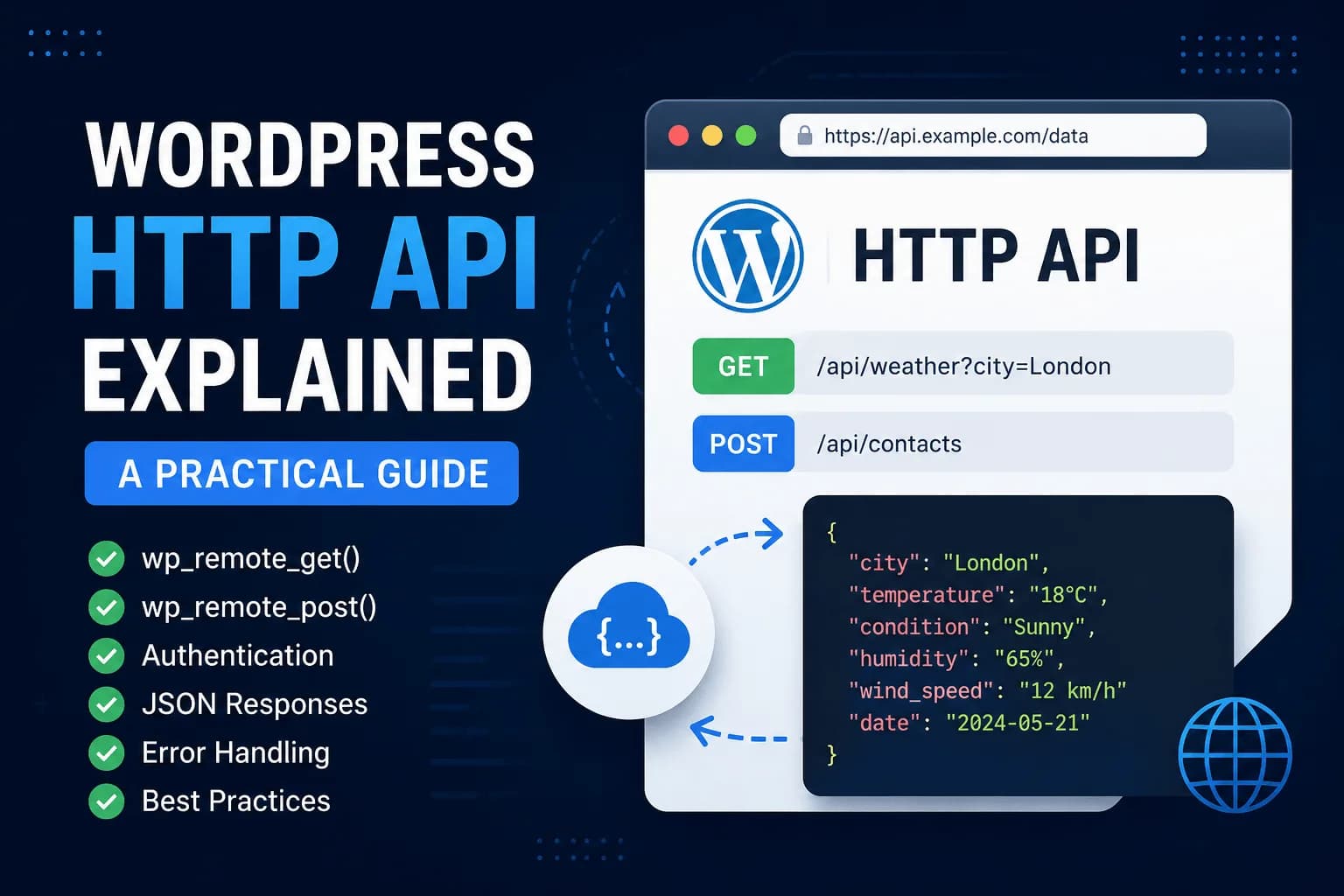
Modern WordPress websites rarely work in isolation. They communicate with payment gateways, CRMs, shipping providers, weather services, AI platforms, and countless third-party applications. Whether you're building a custom plugin or integrating an external service, your application needs a reliable way to send and receive data over the web.
Many developers new to WordPress immediately think of using PHP's cURL functions to make HTTP requests. While that approach works, WordPress already provides a dedicated HTTP API that offers a consistent, secure, and developer-friendly way to communicate with external services.
The WordPress HTTP API abstracts away much of the complexity involved in sending requests. It handles different transport methods, SSL verification, redirects, cookies, headers, and error handling while providing a clean and consistent interface for developers.
Imagine you're building a travel website that displays live weather information for different destinations. Instead of manually updating weather data every day, your website can retrieve the latest forecast directly from a weather service using the WordPress HTTP API.
Throughout this guide, we'll use that scenario to understand how the WordPress HTTP API works. You'll learn how to send GET and POST requests, process JSON responses, handle errors, and follow best practices when communicating with external APIs.
What Is the WordPress HTTP API?
The WordPress HTTP API is a built-in collection of functions that allows WordPress to communicate with external servers through HTTP requests.
Instead of interacting directly with PHP libraries such as cURL or file_get_contents(), developers can use WordPress functions that provide a consistent interface across different hosting environments.
Whenever your plugin needs to retrieve weather information, send customer data to a CRM, verify a payment, communicate with an AI service, or synchronize information with another application, chances are you'll be using the WordPress HTTP API.
The API supports all common HTTP request methods, including GET, POST, PUT, PATCH, DELETE, and HEAD, making it suitable for almost every type of external integration.
Because the HTTP API is part of WordPress core, it automatically benefits from improvements, compatibility updates, and security enhancements introduced in new WordPress releases.
Why Use the WordPress HTTP API Instead of cURL?
Developers with a PHP background often ask why they should use the WordPress HTTP API when cURL already exists.
The answer is simple.
The HTTP API was designed specifically for WordPress.
Rather than writing different implementations depending on the hosting environment, WordPress automatically chooses the best available transport method behind the scenes. If cURL isn't available on a server, WordPress can fall back to other supported methods without requiring changes to your code.
The HTTP API also handles several common tasks automatically, including SSL verification, redirects, cookies, proxy configurations, and request formatting.
Another important advantage is consistency.
Every plugin using the WordPress HTTP API follows the same approach, making projects easier to understand and maintain. Instead of mixing different networking libraries across plugins, developers work with a single standardized interface.
For most WordPress projects, using the HTTP API is considered best practice.
Understanding HTTP Requests
Before writing any code, it's helpful to understand what actually happens when WordPress communicates with another server.
The process is relatively straightforward.
Your WordPress website acts as the client.
The client sends an HTTP request to an external server.
The server processes the request and returns a response.
The response usually contains three important parts:
The HTTP status code
Response headers
Response body
For example, when requesting weather information, your website sends a GET request to the weather provider.
The weather provider processes the request and returns JSON containing the latest forecast.
Your plugin then reads that JSON data and displays it to visitors.
This request-response cycle forms the foundation of almost every API integration you'll build.
Making Your First GET Request
The most common HTTP request is a GET request.
GET requests retrieve information without modifying any data on the server.
Suppose our travel website needs today's weather forecast.
We can send a GET request using wp_remote_get().
$response = wp_remote_get(
    'https://api.example.com/weather'
);
Although this example is simple, a lot happens behind the scenes.
WordPress sends the request to the specified URL, waits for the response, verifies SSL certificates, processes redirects if necessary, and returns the complete response object to your application.
The response itself doesn't contain only the weather information.
It also includes headers, status codes, cookies, and other metadata that may be useful depending on the API you're consuming.
Understanding how to read this response is the next step in building reliable integrations.
Understanding wp_remote_get()
The wp_remote_get() function accepts more than just a URL.
Developers can customize various aspects of the request by passing additional arguments.
A common example looks like this:
$response = wp_remote_get(
    'https://api.example.com/weather',
    array(
        'timeout' => 15,
        'headers' => array(
            'Accept' => 'application/json',
        ),
    )
);
Here, the timeout specifies how long WordPress should wait before abandoning the request if the server doesn't respond.
The headers tell the external API what type of response your application expects.
Depending on the service you're connecting to, you may also specify authentication tokens, cookies, user agents, or additional request options.
Providing these arguments allows your requests to behave consistently while giving you greater control over how external APIs are accessed.
Reading the Response
Once the request completes successfully, WordPress returns a response object.
Rather than working directly with that object, WordPress provides helper functions that extract the information you need.
To retrieve the response body:
$body = wp_remote_retrieve_body( $response );
To retrieve the HTTP status code:
$status = wp_remote_retrieve_response_code( $response );
To retrieve the response headers:
$headers = wp_remote_retrieve_headers( $response );
These helper functions make your code easier to read and reduce the likelihood of mistakes when working with complex response objects.
Before processing any response, it's always a good idea to verify the status code and ensure the request completed successfully.
Working with JSON Responses
Most modern APIs return data in JSON format.
After retrieving the response body, the next step is converting that JSON into a PHP array or object.
WordPress doesn't include a dedicated JSON parser because PHP already provides one.
$data = json_decode( $body, true );
Passing true tells PHP to convert the JSON into an associative array.
You can then access individual values just like any other PHP array.
echo $data['temperature'];
or
echo $data['city'];
This allows your plugin to extract only the information it needs before displaying it on the website.
Whether you're retrieving weather forecasts, stock prices, exchange rates, customer information, or AI responses, the overall process remains exactly the same.
Sending POST Requests
While GET requests retrieve information from an external service, POST requests are used when you need to send data to another application.
Imagine your website contains a contact form, and every enquiry needs to be forwarded to a CRM. Instead of storing the information only inside WordPress, your plugin can send the customer's details directly to the CRM using the WordPress HTTP API.
This is where wp_remote_post() becomes useful.
A basic POST request looks like this:
$response = wp_remote_post(
    'https://api.example.com/contact',
    array(
        'body' => array(
            'name'  => 'John Doe',
            'email' => 'john@example.com',
        ),
    )
);
In this example, WordPress sends the customer's name and email address to the external API. The receiving server can then validate the information, store it in its database, or trigger additional business processes.
Although this example sends only two values, POST requests can include virtually any amount of structured data depending on the requirements of the external service.
Sending JSON Data
Many modern APIs expect requests in JSON format instead of standard form data.
For example, an AI service, payment gateway, or CRM may require a JSON payload.
In that case, you need to encode your data before sending it.
$response = wp_remote_post(
    'https://api.example.com/contact',
    array(
        'headers' => array(
            'Content-Type' => 'application/json',
        ),
        'body' => wp_json_encode(
            array(
                'name'  => 'John Doe',
                'email' => 'john@example.com',
            )
        ),
    )
);
Notice that we're using wp_json_encode() instead of PHP's native json_encode().
WordPress recommends wp_json_encode() because it provides better compatibility and handles character encoding more reliably.
Setting the correct Content-Type header is equally important, as it informs the receiving server that the request body contains JSON data.
Working with Authentication
Most public APIs don't allow anonymous requests.
Before returning data, they require your application to identify itself.
Authentication methods vary depending on the service you're connecting to, but the overall process remains similar.
Many APIs use API keys.
Others require Bearer Tokens or Basic Authentication.
For example, sending a Bearer Token looks like this:
$response = wp_remote_get(
    'https://api.example.com/weather',
    array(
        'headers' => array(
            'Authorization' => 'Bearer YOUR_API_TOKEN',
        ),
    )
);
The API validates the token before processing the request.
If the token is missing or invalid, the server usually responds with an authorization error.
Whenever you're working with authentication credentials, avoid hardcoding them directly into your plugin files. Instead, store them securely using the WordPress Settings API or environment variables where possible.
Handling Errors
One of the biggest mistakes developers make is assuming every HTTP request will succeed.
Servers can become unavailable.
Network connections can fail.
APIs may return unexpected responses.
For this reason, every HTTP request should be checked for errors before processing the response.
WordPress provides the is_wp_error() function for exactly this purpose.
$response = wp_remote_get(
    'https://api.example.com/weather'
);

if ( is_wp_error( $response ) ) {

    return;

}
If the request fails, WordPress returns a WP_Error object instead of a normal response.
Ignoring this possibility can lead to warnings, broken pages, or unexpected application behavior.
Handling errors properly makes your integrations far more reliable.
Checking the Response Status Code
Even if a request completes successfully, the server may still reject it.
For example, an invalid API key might return a 401 Unauthorized response, while requesting a resource that doesn't exist may return 404 Not Found.
Always verify the response code before processing the data.
$status = wp_remote_retrieve_response_code( $response );

if ( 200 !== $status ) {

    return;

}
Checking status codes allows your application to respond appropriately instead of assuming every response contains valid data.
Understanding Timeouts
External APIs aren't always fast.
Some may take several seconds to respond.
Rather than waiting indefinitely, WordPress allows developers to define how long a request should remain active before timing out.
$response = wp_remote_get(
    'https://api.example.com/weather',
    array(
        'timeout' => 15,
    )
);
The timeout value is measured in seconds.
Choosing a reasonable timeout helps improve user experience by preventing slow external services from delaying your entire website.
For most applications, a timeout between 10 and 20 seconds is sufficient.
A Real-World Example
Let's return to our travel website.
Instead of manually updating weather information every day, the website retrieves the latest forecast from an external weather service whenever visitors view a destination.
The process is straightforward.
First, the plugin sends a GET request to the weather API.
Next, it verifies that the request completed successfully.
Then it checks the HTTP status code.
Finally, it retrieves the response body, decodes the JSON, and displays the weather information on the website.
Although our example focuses on weather data, the same workflow applies to countless integrations.
Whether you're connecting to Stripe, OpenAI, Salesforce, HubSpot, Mailchimp, or another WordPress website, the overall process remains almost identical.
Once you understand the request-response cycle, integrating external APIs becomes much easier.
Best Practices
The WordPress HTTP API is relatively simple to use, but following a few best practices will help you build more reliable integrations.
Always validate responses before processing them, even if you're confident the external service is working correctly.
Avoid making unnecessary API requests whenever possible. If the response doesn't change frequently, consider caching it using the WordPress Transients API to improve performance and reduce the number of requests sent to the external service.
Never expose API keys directly in your codebase. Store sensitive credentials securely and restrict access whenever possible.
Use appropriate timeouts so slow external services don't negatively affect your website's performance.
Finally, expect failures. Every external service experiences downtime occasionally, so your application should always handle unexpected responses gracefully.
Common Mistakes
Many developers encounter similar issues when they first begin working with external APIs.
One common mistake is ignoring WP_Error responses and immediately attempting to process the returned data.
Another is assuming every successful connection returns valid information without checking the HTTP status code.
Developers also frequently forget to cache responses, resulting in unnecessary API requests that increase page load times and may exceed rate limits imposed by the external service.
Hardcoding authentication credentials inside plugin files is another common issue. While convenient during development, it creates security risks and makes deployments more difficult.
Finally, many developers process raw JSON responses without validating the expected structure, which can cause unexpected errors if the external API changes its response format.
Final Thoughts
The WordPress HTTP API is one of the most valuable tools available to WordPress developers. It provides a consistent and secure way to communicate with external services while abstracting away much of the complexity involved in making HTTP requests.
Whether you're retrieving weather information, processing payments, integrating a CRM, communicating with AI platforms, or synchronizing data between applications, the workflow remains largely the same: send a request, validate the response, process the returned data, and handle errors appropriately.
Mastering the WordPress HTTP API not only makes external integrations easier but also opens the door to building modern, connected applications that extend far beyond a traditional WordPress website.
As your projects become more sophisticated, you'll find yourself using the HTTP API regularly. Combined with the REST API and the Transients API, it forms the foundation of many scalable WordPress integrations and custom plugin solutions.